Summary:
Generic, mass-produced calendars don’t reflect a brand’s priorities or speak directly to their audiences. Businesses, nonprofits, and entrepreneurs can get more value from this marketing approach when they send out personalized calendars to specific audience segments near the end of the year. QR codes, discount codes, coupons, helpful tips, messages, and logos can add additional value and raise brand awareness throughout the year. A well-designed custom calendar can potentially deliver 600+ impressions for as little as $0.02 each.
| Time to Read |
|
| What You’ll Learn |
|
| Next Steps |
|
Promotional calendars may feel old-school, but there’s a reason why they’re so popular. Up to 62% of people who receive one go on to keep and use it for at least a year. For about $15, you get over 600+ potential impressions (how often people see your brand) at a total cost of around two cents each.
Those are impressive numbers, but you’ll need to do more than just hand out cookie-cutter promos if you want to achieve them. We’ll show you why going generic doesn’t deliver, how to use custom calendars to make them more cost-effective, and how to use our templates to design them in this guide.

Why Generic Calendars Don’t Deliver
Think about the last calendar you got in the mail randomly. Where is it now? Chances are that unless it was personalized in some way, it’s either in the trash or maybe stashed in a junk drawer somewhere.
The simple truth is that generic promo calendars are easy to forget:
- They look just like every other cheap calendar out there
- If they’re mailed out, they compete with other clutter and junk mail
- They don’t drive enough interest to serve as a consistent touchpoint
Stock photos also perform more poorly than people realize. The average person sees thousands of them per day online already, so they don’t really create the kind of emotional connection that helps build loyalty or raise awareness about your brand. They just disappear into the noise, like spam emails.
Marketing Tips for Custom Calendar Campaigns
Want your calendar investment to pay off? Going custom is the answer. When you take the time to make it truly unique and personalized, you’re showing every recipient you put in the effort to understand them.
Think of a good custom calendar as a 12-month long story or conversation between you and your customer. Each month should feel like another opportunity to connect with them, spark an emotional response, or add some kind of value to their life.
You can achieve that through:
- Being Intentional. Treat your calendar like any other marketing channel. Connect it with your broader campaigns by tying in sales, seasonal promotions, or community milestones.
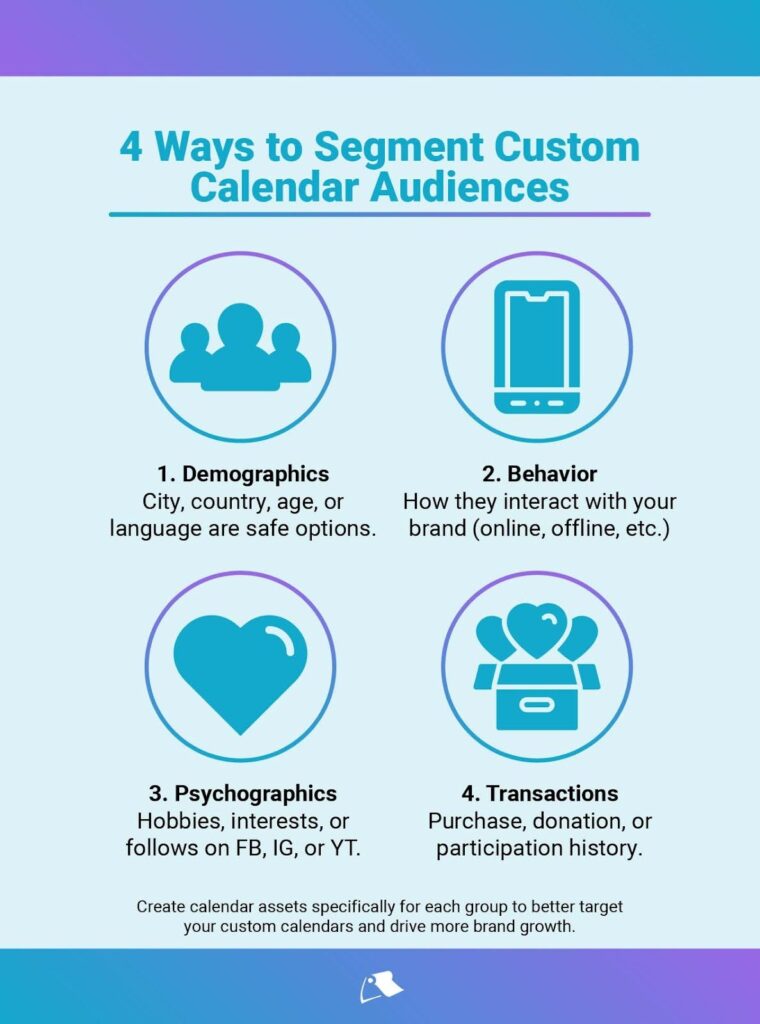
- Segmentation. Break your audience down into smaller groups based on characteristics like age, income level, or life stage. Create calendars filled with content they can relate to and want to see.
- Planned Distribution. Mass mailing is costly and ineffective. Skip it and map out your campaigns closer to the holidays or special events that occur shortly before the start of the new year.
- Adding Special Benefits. Add QR codes, discount codes, coupons, helpful tips, or other beneficial extras along the pages or on additional pages at the back.
- Picking Better Photos. Ditch the stock sites and go for high-res images related to the top 3-4 categories representing your brand. If you sell clothes, it’s fashion. If you’re an animal rescue, it’s pets or adoptables instead. If you’re a corporation, it’s pictures in the field or of teams.
By treating calendars as a strategy instead of just a freebie you need to chalk up to a loss, you turn them into a marketing asset that creates new touchpoints for an entire year. Comparatively speaking, this is significantly cheaper than what you’ll pay to reach a targeted audience on any social media platform.
Who Benefits Most From Custom Calendars?
Small Businesses
Local shops and service providers can use calendars to tap into hometown pride and motivate people to “buy local” in a big way. To get the most value, include photos of familiar places, stories from locals, or free advertising slots for schools and nonprofits. It humanizes your brand and strengthens community ties.
Suggested Use Cases:
- Holiday giveaways for loyal customers
- Client retention tools (hand out at checkouts)
- Event swag at local fairs or markets
- School or church fundraising partnerships
Nonprofits & Other Community Groups
Calendars make excellent fundraiser products when they feature local events, pets, or highlights from programs. But supporters also want to see how they’re making an impact and feel appreciated. Mix in thank-you notes, heartwarming photos, and reminders for special dates like galas or fundraisers.
Suggested Use Cases:
- Donor thank-you gifts
- Annual fundraising campaigns
- Year-end impact reports
- Community outreach events
- Corporate sponsorship gifts
Photographers & Artists
For creatives, calendars are one of the most affordable ways to turn a portfolio into a retail product that stays in front of fans or clients all year long. Curate 12 photos or prints of your best work, then add in stories about your process and QR codes that link directly to your online store or booking page.
Suggested Use Cases:
- Direct sales to fans and collectors
- Seasonal advertising (spring, fall, winter, summer)
- Concert, art fair, or gallery merchandise
- Portfolio handouts for prospective clients
- Exclusive keepsakes for VIP guests
- Holiday gifts for loyal customers
Corporate Teams
Branded calendars make an excellent employee appreciation gift and can even help build company culture if you set them up right. Use them to highlight company milestones, recognize employee achievements, and show off photos of people and teams that create a sense of unity and pride.
Suggested Use Cases:
- Welcome kits for new hires
- Employee appreciation gifts
- Staff birthdays or work anniversaries
- Donor or client thank-you gifts
- Holiday mailers to partners
How to Make Custom Calendars Easily With Little Rock’s Templates
Not everyone has a designer on staff, and that’s okay. Little Rock’s Canva templates are built for speed and accuracy, so they’re easy and intuitive to use even if you have zero experience. In the sections below, we’ll walk you through the process step-by-step.
ProTip: Need more help? Get a step-by-step video walkthrough on our YouTube channel.
Step 1: Choose your Calendar Format
To get started, decide whether you want to go with a desk calendar or a wall calendar. Then, click on the relevant link below for the type and size that best fits your campaign goals.
Wall Calendars:
2026 CALENDAR TEMPLATE (Square)
2026 CALENDAR TEMPLATE (11×8.5″)
Desktop Calendars:
ProTip: Not sure which one is right for you? You can see a preview of what they look like when they’re printed and access all of our other Canva templates at this link.
Step 2: Upload Photos Into Pre-Sized Image Slots
With our Canva templates, all of the fussy design features like bleed, margins, save zones, and monthly layouts are already in place. The next step is uploading your favorite photos into .
- In the left sidebar, click “Uploads.”
- Select “Upload Files” next.
- Find your photo folder on your computer.
- Select the image(s) you want to upload.
- Wait for it to upload.
- Click and drag the image over any of the placeholder images in the template.
- Release the mouse and Canva will automatically fit it into place for you.
- Double-click the photo inside the frame and drag to reposition it manually.
ProTip: Need to upload many photos at once? Hold CTRL (on Windows) or CMD (on Mac) while left-clicking to select more than one at a time.
Step 3: Add Your Logo, Brand Colors, and Text.
The beauty of a fully-editable template is that you can change just about everything to strengthen your brand’s reputation throughout the calendar itself. Canva makes it dead-simple to swap in your logo, adjust colors, and add notes anywhere you see fit.
To Add Your Logo:
- In the left sidebar, click “Uploads” to bring in your logo file.
- Drag and drop the logo onto your design.
- Resize or reposition it wherever you want it to show.
- Don’t forget about the dedicated logo slot on the final page!
To Change Colors:
- Left-click on the element you want to recolor (text, shape, or border).
- In the top toolbar, click the color tile (the small square showing the current color).
- Choose a new shade from the default palette, or click the + icon to find a custom color.
- Repeat the same process for each element you want to update.
ProTip: If you’re using Canva Pro, you can set up a Brand Kit so your colors are ready to apply across any project right from the color panel.
To Change Existing Text:
- Double-click on any existing text box to open it for editing.
- Start typing to replace the placeholder text with your company name, tagline, or custom message.
- Single-click a text box to select it if you just need to move it, resize it, or change the style.
- Use the top toolbar to adjust font, size, color, alignment, and spacing until you’re happy.
To Add New Text:
- In the left sidebar, click Text.
- Choose “Add a text box” and wait for it to show up on the canvas.
- Use the four-way arrows to drag the box to any location on the template.
- Use the top toolbar to change font, size, color, alignment, and spacing.
- Double-click the text to edit it later on if you want to make any changes.
ProTip: Be mindful about how you use text and where you add it in. Too much text in a small area, or fonts that are too decorative (like scripts) can be difficult to read at a glance.
Step 4: Export Your Print-Ready File
Next, you’ll export the file in a format that lets our team print it off without delays or errors. Canva will handle all of the print-ready specifics for you as long as you follow these instructions.
- In the top-right corner, click the Share button.
- Select Download.
- Under File type, choose PDF Print (this ensures 300 DPI resolution).
- Check the boxes for Crop marks and bleed so nothing important gets cut off.
- If available, switch Color profile to CMYK for accurate print colors.
- Click Download to save the finished file to your computer.
Make a note of where you store the file. You’ll need to upload it into our system when you place your order. If you have any questions, or just want to run the file by us first, just send us a message!
ProTip: Keep a copy of your PDF for your records and in Canva. It’ll make it easier for you to create new versions so you can run more campaigns in the future.

Print Confidently with Little Rock
Generic calendars are forgettable, disposable, and don’t deliver enough brand ROI to make them a justifiable marketing tool. Custom calendars are cost-effective, keep your brand in front of people all year round, and are much easier to create than most people realize.
With Little Rock’s ready-to-go templates and print expertise, you get the best of both worlds: impact and production simplicity. Jump into our free Canva template and start designing an infinite number of iterations in minutes. Once you’re happy with them, upload your file and we’ll start working on it right away.